




Estimated reading time at 200 wpm: 8 minutes
Everyday communication carries risk that most people never consider. Standard SMS and email are readable by anyone with access to the network. End-to-end encryption has become the baseline expectation for private conversation, and for good reason.
Whether or not you agree our Fat Disclaimer applies
WhatsApp uses end-to-end encryption by default, covering messages, calls, and media. The protocol is sound: it adopted the Signal Protocol in April 2016 [WhatsApp completes end-to-end encryption rollout, TechCrunch, April 2016]. But WhatsApp is owned by Meta, a company whose revenue depends on user data. WhatsApp collects extensive metadata — who you contact, when, how often, your device information — even though message content is encrypted. Most people are unaware of all that.
Signal addresses many of these concerns. It is open-source, run by a non-profit, and has been endorsed repeatedly by Edward Snowden [Snowden endorses Signal, The News, January 2021]. It uses the same Signal Protocol and minimises metadata collection. But it still requires a phone number to register, and its servers can observe connection patterns. Snowden has described Signal as more secure than WhatsApp, but not secure enough for his own threat model.
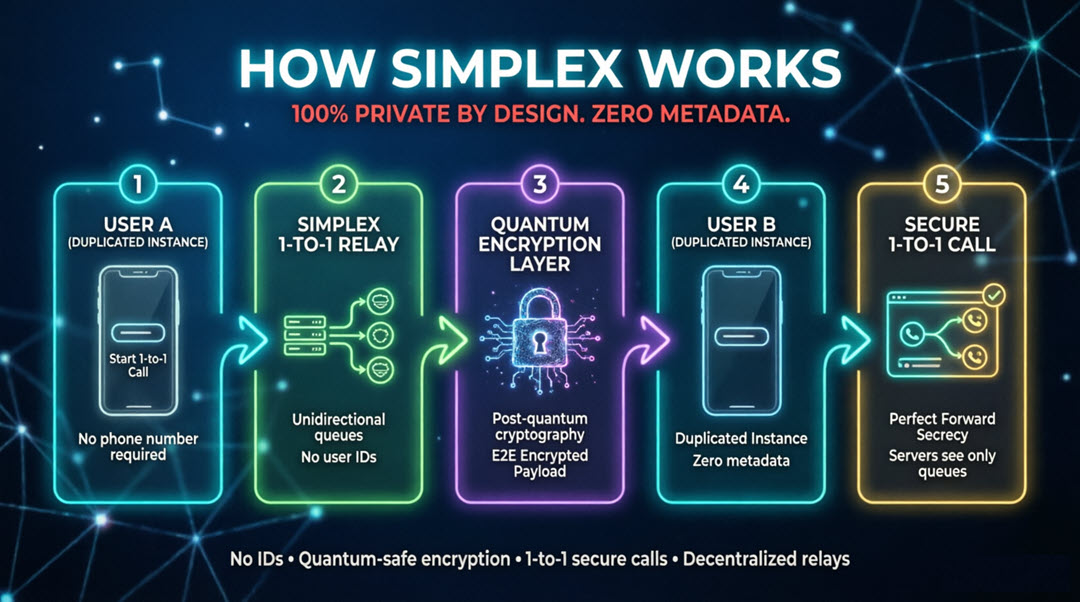
The question that led me to SimpleX was straightforward: is there a messaging tool where no identifier exists at all — no phone number, no username, no random ID — and where the server cannot build a map of who talks to whom? SimpleX answers yes. “Unlike any other existing messaging platform, SimpleX has no identifiers assigned to the users — it does not use phone numbers (like Signal or WhatsApp)], domain-based addresses (like email, XMPP or Matrix)], usernames (like Telegram)], public keys or even random numbers (like all other messengers)] to identify its users — we do not even know how many people use SimpleX.” Founded by Evgeny Poberezkin and first released in 2021 [SimpleX Chat, Wikipedia, 2026], it is the only mainstream messenger that operates without any user identifiers.
To avoid the snooping risks that come with mobile phones, this guide uses only Windows 11 computers and covers connecting two Windows 11 machines for voice or video calls. Those who wish to use SimpleX for their mobile phones will find good online instructions at SimpleX. In that setup, do not allow ‘notifications’ as they create leaks.
None of this is highly technical. It only requires following the steps carefully.
1. Installing SimpleX on Windows
This part may have some variations. If you get stuck, don’t panic and give up. It’s not technical at all.
Downloading the app
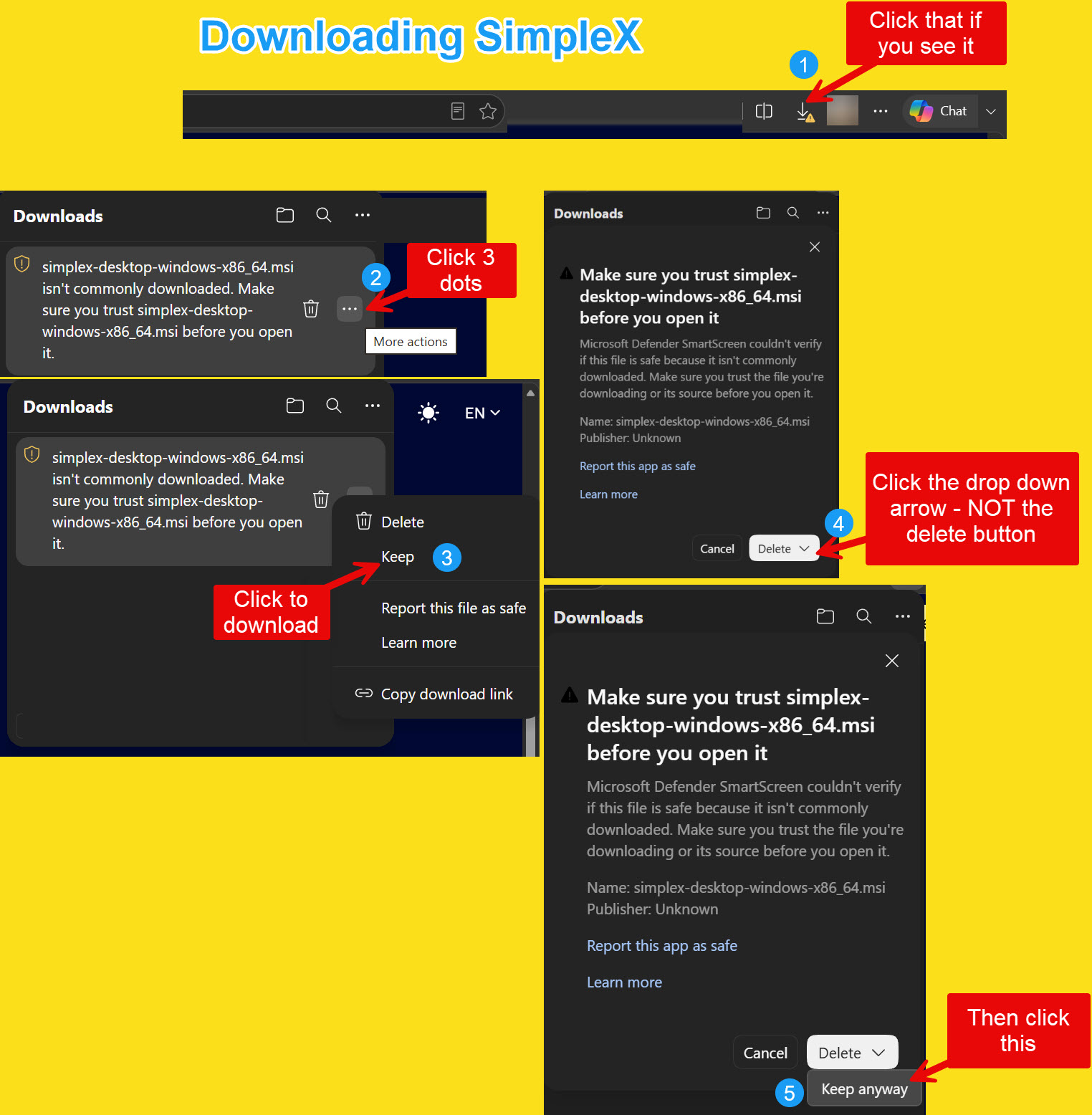
SimpleX Chat is free and open-source. Download the Windows installer from the official [SimpleX Chat downloads page]. Alternative download locations are listed on the project’s [GitHub releases page]. The Windows download is an .msi installer [x86_64].
Installation on Windows
Run the installer and follow the standard Windows installation prompts. Windows Defender SmartScreen may show a warning that the app is unrecognised. This is expected for an open-source app that is not widely signed. If you downloaded from the official site, click More info and then Run anyway to continue.
2. Creating your profile
A profile is absolutely necessary.
What a profile is
A chat profile in SimpleX is a local set of information stored on the device. It includes a display name, an optional full name, and an optional profile image. No account is created and no server requests are sent when a profile is created [SimpleX Chat v5.3 released: desktop app, local file encryption, simplex.chat, September 2023]. The profile exists only on the device.
Creating the profile
To create a profile, open the app and enter a display name. A full name can be added optionally. A profile image can be set, though this is not required. Once created, the profile is ready to use immediately.
Incognito mode
When incognito mode is turned on, the current profile name and image are not shared with new contacts. Each new connection generates a new random profile name and image if incognito is active [SimpleX Chat User Guide, simplex.chat, 2026]. This allows anonymous connections without any shared data.
Profile and identifiers
SimpleX assigns no identifiers to users — no phone numbers, usernames, or random numbers. The profile is not linked to any server-side account and exists only on the device [SimpleX platform, simplex.chat, 2026].
3. Setting the database passphrase
The app will offer to set a database passphrase. This encrypts the local SQLite database that stores all messages, contacts, and groups. The passphrase must be memorised. There is no way to recover it if forgotten [SimpleX Chat v4.0 with encrypted database is released, simplex.chat, September 2022].
A password is only as strong as its randomness. A predictable phrase with letter substitutions, such as J4c0bs_s0n-is-4-F00l, falls to an automated dictionary attack in minutes. Use a long, random passphrase such as tsU*5uTd65@82hhCkTdv, and store it in your password manager or somewhere only you can reach.
If the passphrase is skipped, a random passphrase is generated and stored on the device in plaintext. This defeats the purpose of database encryption and creates a false sense of security. For this reason, setting a strong passphrase is not optional. It is the single most important security step in the setup process.
What the passphrase protects
Since version 4.0, released in September 2022, the database is encrypted using SQLCipher [SimpleX Chat v4.0 with encrypted database is released, simplex.chat, September 2022]. The passphrase is the key to that encryption. Without it, the database contents are unreadable.
4. Connecting two laptops
Creating a one-time invitation link
On one laptop, open SimpleX and click the new chat button (the pencil icon)]. Select Create one-time invitation link [How to connect to people, simplex.chat, 2026]. This generates a single-use link containing only public keys. It is safe to share over any communication channel [SimpleX platform, simplex.chat, 2026].
Sharing the link
Share the link with the other laptop however is convenient — email, USB stick, or any other method. Because the link contains only public keys, it is safe to share over ordinary channels. It can also be shared as a QR code if both laptops are in the same room.
Accepting the connection
On the second laptop, open SimpleX and use the option to connect via link or QR code, then paste the link [Frequently Asked Questions, simplex.chat, 2026].
The two laptops do not need to be online at the same time. Messages are queued on the relay servers and delivered when each side next comes online. A live call is the exception: both people must be online at the same time to talk.
Firewall considerations
In normal use, no firewall changes are needed. SimpleX connects outward to relay servers, and Windows allows outbound connections by default, so you should not need to open any ports on either laptop. If a connection is blocked on a strict network, allowing SimpleX Chat through Windows Firewall is the first thing to try.
5. Making a voice call
Finding the call button
The phone icon is at the top of the screen, to the right of the contact’s name. It is small and easy to miss. When a chat with the contact is open, look for it at the top of the screen [Audio and Video Calls, simplex.chat, 2026].
Making an audio call
Click the phone icon. The audio call connects end-to-end encrypted via WebRTC.
Making a video call
Click the three vertical dots in the top right corner of the screen. Select Video call from the menu.
Receiving a call
When an incoming call arrives, three options are available: accept to connect, reject to decline without notifying the caller, or ignore to dismiss temporarily. An ignored call can be accepted later, via the “Accept call” message in the conversation, if the caller is still waiting [Audio and Video Calls, simplex.chat, 2026].
Call limitations
Group voice and video calls are not supported. All calls are one-to-one only. Calls are routed via a TURN relay server by default, which hides your IP address from the contact but can observe call duration. You can switch to peer-to-peer (P2P)] in Settings → Audio and video calls by turning off Always use relay, though this exposes your IP address to the contact [Audio and Video Calls, simplex.chat, 2026].
Conclusion
Secure communication is worth a small investment of time. This guide covers one narrow case: two Windows 11 computers set up to make encrypted voice or video calls. The first-time setup takes between 5 and 30 mins depending on familiarity with software installations. Most the time may be spent with download and installation, then choosing and memorising a strong database passphrase. After that, making a call is no harder than with any other app.
What you get is a very secure set up with SimpleX. The servers that pass messages along cannot build a picture of who talks to whom, because there is nothing to attach a name to at either end.
There are limits. Group calls are not supported, and one-to-one calls go through a relay by default. For two people who want to talk without handing a company their contact map, those are small prices to pay.
Once properly set up, with practice it becomes easy to use. From then on, the conversation belongs to the two people having it.