Estimated reading time at 200 wpm: 5 minutes
1. The Problem: “All or Nothing”
Microsoft Word’s built-in word count feature is binary: it counts everything or nothing. For an author, this is often insufficient. A 50,000-word manuscript might be heavily dialogue-driven or dense with internal monologue, but Word treats “Hello” (dialogue) exactly the same as Hello (thought). There will be times when an author needs to have an idea about how much dialogue is in a chapter. A different macro may have italicised words between quotation marks, but it may not have caught all.
Whether or not you agree our Fat Disclaimer applies
The macro solution presented at the end of this article, was designed to break down the total word count into stylistic categories, specifically separating:
- Bold text
- Italicised text
- Dialogue (text within double or single quotes)
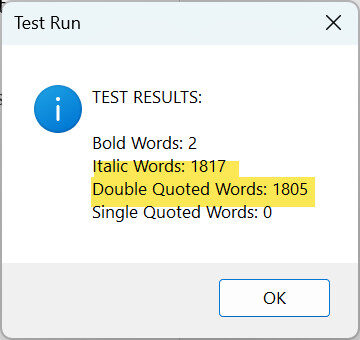
Sometimes cutting and pasting changes italicisation if made at the outset. The macro solution automates, thereby saving time and energy that can be more profitably used in other areas writing.
2. Implementation Strategy: The Global Template
To render this tool effective, it was implemented using two specific architectural strategies:
A. The Normal.dotm Template
Instead of saving the macro inside a specific manuscript file (e.g., Chapter1.docx), it was saved into Normal.dotm.
- Why?
Normal.dotmis Word’s “Global Template.” Code saved here is available in every single document opened. - Benefit: There is no requirement to copy and paste the code into every new chapter or story. The tool becomes a permanent part of the Word application.
B. Modular Separation
The code was placed in its own dedicated module (e.g., named WordCountTools) rather than being pasted into the existing NewMacros module.
- Why? Modularity ensures safety.
- Benefit: By keeping this new code separate from existing macros, the risk of accidentally disrupting older tools during installation is eliminated. It also makes the code easier to find, edit, or remove in the future without affecting other functions.
3. Use Cases for Authors
This granular data provides insights that a standard word count cannot:
- Dialogue Density (Quotation Count):By comparing the “Quoted Words” count against the total word count, the ratio of dialogue to narrative can be determined. This assists in identifying scenes that are “talking heads” (excessive dialogue) or “walls of text” (insufficient dialogue).
- Internal Monologue Check (Italics Count):Many authors use italics for internal thoughts. A high italic count might indicate heavy reliance on internal monologue rather than action or subtext.
- Emphasis Audits (Bold/Italics):”If everything is emphasised, nothing is.” A surprisingly high count of bold or italic words can alert authors to a habit of over-emphasising words, facilitating editing for subtlety.
- Formatting Consistency:The macro counts both smart (curly) and straight quotes seamlessly. This ensures that even if text has been copied and pasted from different sources, the count remains accurate.
4. The Macro Code
Below is the final, production-ready VBA code. It uses .MatchWildcards to ensure accurate detection of patterns and grouping of smart/straight quotes.
Sub AdvancedWordCount()
    Dim doc As Document
    Set doc = ActiveDocument

    Dim boldWords As Long
    Dim italicWords As Long
    Dim doubleQuoteWords As Long
    Dim singleQuoteWords As Long
    Dim searchRange As Range

    ' --- 1. Count Bold Words ---
    Set searchRange = doc.Content
    With searchRange.Find
        .ClearFormatting
        .Font.Bold = True
        .Format = True
        .Forward = True
        .Wrap = wdFindStop
        Do While .Execute = True
            ' ComputeStatistics avoids counting punctuation as words
            boldWords = boldWords + searchRange.ComputeStatistics(wdStatisticWords)
        Loop
    End With

    ' --- 2. Count Italic Words ---
    Set searchRange = doc.Content
    With searchRange.Find
        .ClearFormatting
        .Font.Italic = True
        .Format = True
        .Forward = True
        .Wrap = wdFindStop
        Do While .Execute = True
            italicWords = italicWords + searchRange.ComputeStatistics(wdStatisticWords)
        Loop
    End With

    ' --- 3. Count Words in Double Quotes (Smart OR Straight) ---
    Set searchRange = doc.Content
    With searchRange.Find
        .ClearFormatting
        .Format = False
        .MatchWildcards = True
        ' Look for opening quote, text, closing quote
        ' Handles straight (") and smart (“ ”)
        .Text = "[" & ChrW(8220) & Chr(34) & "][!" & ChrW(8220) & ChrW(8221) & Chr(34) & "]@" & "[" & ChrW(8221) & Chr(34) & "]"
        Do While .Execute = True
            doubleQuoteWords = doubleQuoteWords + searchRange.ComputeStatistics(wdStatisticWords)
        Loop
    End With

    ' --- 4. Count Words in Single Quotes (Smart OR Straight) ---
    Set searchRange = doc.Content
    With searchRange.Find
        .ClearFormatting
        .Format = False
        .MatchWildcards = True
        ' Look for opening single, text, closing single
        ' Handles straight (') and smart (‘ ’)
        .Text = "[" & ChrW(8216) & Chr(39) & "][!" & ChrW(8216) & ChrW(8217) & Chr(39) & "]@" & "[" & ChrW(8217) & Chr(39) & "]"
        Do While .Execute = True
            singleQuoteWords = singleQuoteWords + searchRange.ComputeStatistics(wdStatisticWords)
        Loop
    End With

    ' --- Output Report ---
    MsgBox "Word Count Report:" & vbCrLf & vbCrLf & _
           "Bold Words: " & boldWords & vbCrLf & _
           "Italic Words: " & italicWords & vbCrLf & _
           "Double Quoted Words: " & doubleQuoteWords & vbCrLf & _
           "Single Quoted Words: " & singleQuoteWords, vbInformation, "Advanced Word Count"

End Sub
Conclusion
The job of an author is mainly to focus on getting words organised so that they make sense. In tandem the task of making other checks become necessary. It is useful to develop automated strategies to save time and effort for basic tasks.