



Estimated reading time at 200 wpm: 3 minutes
What happened was that I created a System Restore point before 590 Nvidia. System Restore failed even after switching off Virus Shield. This meant I’d have to do a fresh re-install of the 577 driver. The best path forward was to ensure that 590 was totally cleaned out.
Whether or not you agree our Fat Disclaimer applies
Of course, not everybody knows:
- What is a computer, mouse, or keyboard – it’s all too technical.
- What is a driver
- What is a graphics card
- Or if they know what graphics card(s) they have in their computer, why it’s important. After all not everybody is a gamer – right?
Absolute Cleanup: DDU & 577.00 Rollback
This procedure is designed to purge the failed 591.74 Studio driver and restore the system to the 577.00 baseline with a completely clean registry.
Phase 1: Preparation (Before the Purge)
- BIOS Check: Ensure the BIOS is set to MSHybrid/Optimus mode. If you stay in Discrete mode while the driver is broken, you risk a black screen during the cleanup.
- File Check: Have the
577.00-desktop-win10-win11-64bit-international-dch-whql.exeinstaller ready on your desktop. - DDU Check: Ensure the DDU folder is unzipped and the
Display Driver Uninstaller.exeis accessible.
Phase 2: Entering Safe Mode
Windows will not allow a full driver purge while the standard desktop is running.
- Hold the Shift key and click Restart from the Start menu.
- Choose Troubleshoot > Advanced options > Startup Settings > Restart.
- When the list appears, press 4 (or F4) to boot into Safe Mode.
Phase 3: The DDU Purge
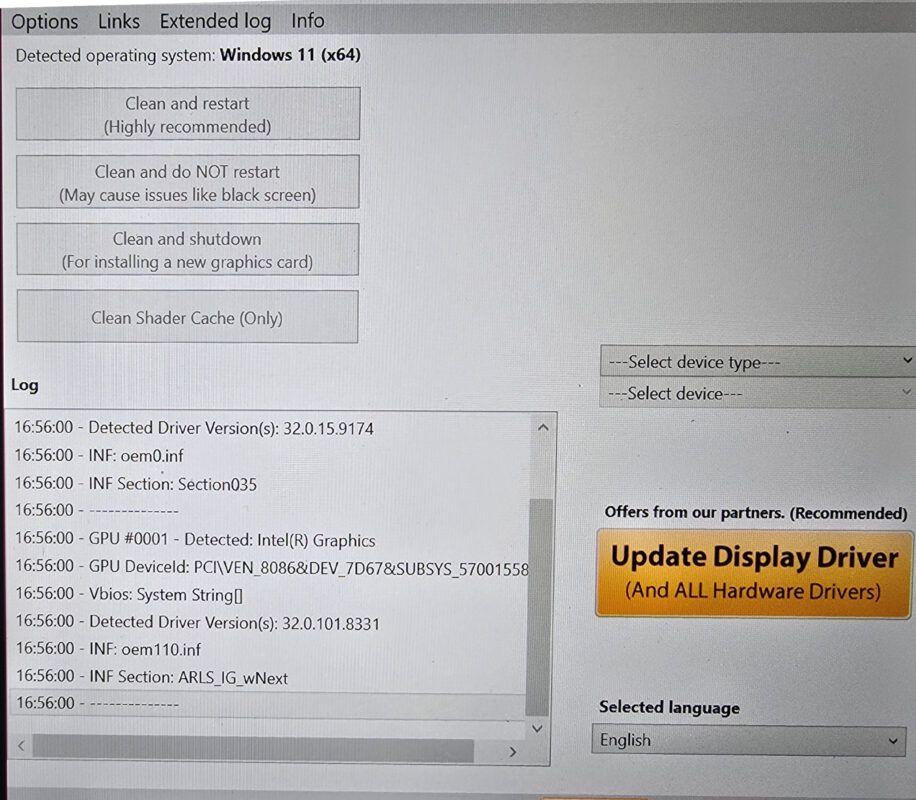
- Once in Safe Mode (your wallpaper will be black and icons will be large), open the DDU folder.
- Launch
Display Driver Uninstaller.exe. - On the right-hand side, look for the “Select device type” dropdown. Choose GPU.
- Below that, ensure the second dropdown says NVIDIA.
- Click the top-left button: Clean and restart.
- Note: Your screen may flicker; DDU is now deleting every NVIDIA file, folder, and registry entry. The system will automatically reboot into normal Windows when finished.
Phase 4: Installing 577.00
Your PC will reboot. The resolution will look very low (800×600 or similar) because there is no driver installed.
- Run the 577.00 installer you prepared.
- When asked for the installation type, choose NVIDIA Graphics Driver (you don’t need GeForce Experience/NVIDIA App right now).
- Choose Custom (Advanced).
- Crucially: Tick the box that says “Perform a clean installation”.
- Follow the prompts and restart the laptop when the installer finishes.
Phase 5: Verification
Once back at the desktop:
- Right-click Start > Device Manager.
- Under Display adapters, ensure “NVIDIA GeForce RTX 5070 Ti” is listed without any yellow warning triangles.
- Check your shutdown time. It should be back to the healthy ~1-2 second range.
Warning: Do NOT flip the BIOS back to “Discrete” until you have confirmed the system is 100% stable in Hybrid mode first. Alternatively stay in Discrete.




Outcome
Laptop is back to full functioning.