

Estimated reading time at 200 wpm: 5 minutes
It is not uncommon that people receive a PDF text document that they cannot copy text from. They tend to spend on software that can do the job, or use online services. However, the quality of text output is largely a function of the cost. Cheap services and software are generally poor quality. Good quality often costs loads of money, like Adobe software. What if you could have good quality for just the cost of your personal time and a W11 computer you already own? If that interests you stick around.
Whether or not you agree our Fat Disclaimer applies
You could have confidential PDF that needs converting to an editable Word document. You really will not be putting that into some online converter, unless you need a change of career. Existing licensed software (PDF-XChange) produced poor OCR output.
This is not a tutorial! I don’t know you. Get some AI assistance for free.
Objectives
- Convert PDF files to .docx entirely on the local machine.
- No command-line use in daily operation. A simple drag-and-drop window.
- Output saved automatically to the same folder as the source file.
- Zero cost. Free, open-source components only.
Components
| Component | Role |
|---|---|
| Tesseract OCR (UB Mannheim build) | Reads text from page images |
| PyMuPDF | Renders PDF pages as images at 300 DPI |
| pytesseract | Python bridge to Tesseract |
| python-docx | Builds the Word document |
| PySide6 | The drag-and-drop window |
| NumPy | Detects redaction blocks in page images |
All free. All running locally. Nothing leaves the machine.
Replication Steps
Stage 1 — Check whether Tesseract is installed
You’re pasting code into Powershell. Google it and check YouTube to learn more. It’s on your Windows 11 computer. It’s free. You don’t need to understand it all – unless you’re one of those people who studies all about how cars work before getting into one.
tesseract --version
If not recognised, download the 64-bit installer from:
https://github.com/UB-Mannheim/tesseract/wiki
Run the installer. Accept the defaults. Installation lands at C:\Program Files\Tesseract-OCR.
The installer does not add Tesseract to PATH. This does not matter. The script points directly at the executable. Confirm it is present:
dir "C:\Program Files\Tesseract-OCR\tesseract.exe"
Stage 2 — Check the Python packages
Run each check:
pip show pytesseract
pip show pymupdf
pip show python-docx
pip show pyside6
pip show numpy
Install anything missing:
pip install pytesseract pymupdf python-docx pyside6 numpy
If PyMuPDF later fails with a DLL import error, force a clean reinstall:
pip install --force-reinstall pymupdf
Stage 3 — Place the script
You may need some free AI assistance with this part. The folder structure is just an example.
Create the folder and place the script file in it:
C:\MY_APPLICATIONS\PDF2DOCX\pdf_to_docx.pyw
Note the .pyw extension. It runs Python without a console window.
One line inside the script points at Tesseract. Adjust if the install location differs:
pytesseract.pytesseract.tesseract_cmd = r"C:\Program Files\Tesseract-OCR\tesseract.exe"
Stage 4 — Test from the command line first
python C:\MY_APPLICATIONS\PDF2DOCX\pdf_to_docx.pyw
The window should appear. Drop a PDF onto it. The output lands beside the source PDF with a _converted suffix.
Stage 5 — Create the double-click shortcut
Find the console-free Python. The path contains the machine’s username:
dir C:\Users\<USERNAME>\miniconda3\pythonw.exe
Right-click the Desktop → New → Shortcut. Paste as the location, adjusting the username:
C:\Users\<USERNAME>\miniconda3\pythonw.exe "C:\MY_APPLICATIONS\PDF2DOCX\pdf_to_docx.pyw"
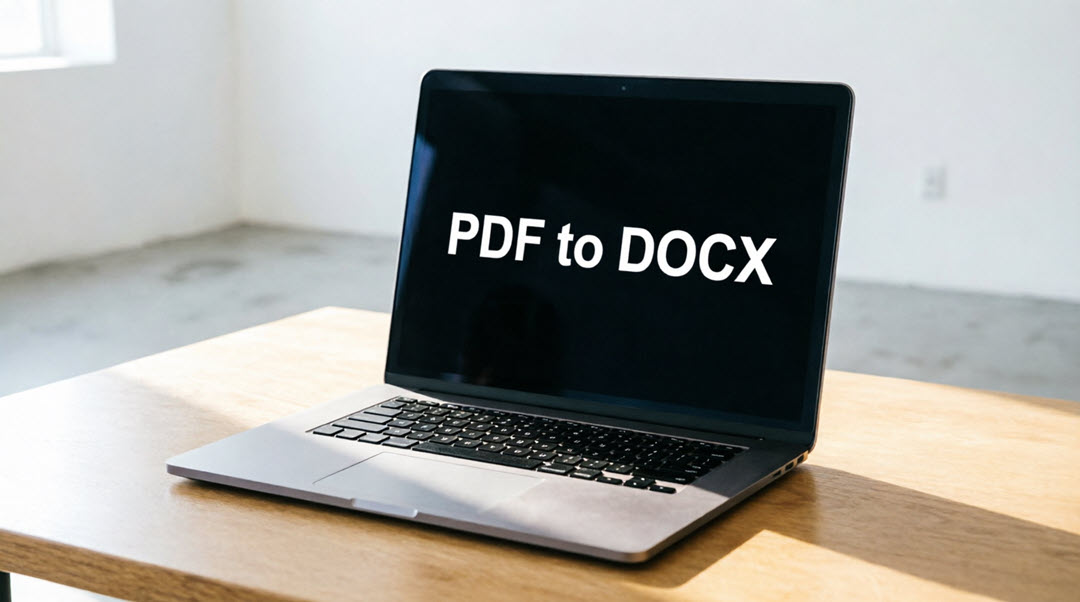
Name it PDF to DOCX. Finish. Double-click launches a window with no console. You drag your PDF into it and in seconds you have your .docx file.
Roadblocks
Get some AI assistance with these if they occur.
- Tesseract not on PATH after install. Resolved by pointing the script directly at the installed executable rather than modifying system settings.
- Corrupted PyMuPDF installation. A DLL import failure. Resolved with a forced reinstall.
- A syntax error in a regular expression. Quote escaping conflict. Corrected.
- OCR quirks. The letter I misread as a pipe character or the digit 1. Corrected with targeted post-processing rules.
- Line breaks and white space. Tesseract preserves the physical layout of the page. Lines were merged into flowing paragraphs; excess white space collapsed.
- Redacted areas. Solid black boxes produced garbage characters at their edges. Resolved in two stages: black blocks detected and whited out before OCR, then the white-out expanded by a pixel margin to swallow edge artifacts. A bracketed placeholder is drawn into the cleared space so each redaction appears as [ ] in the output.
- Console window on launch. Resolved with the .pyw extension and a desktop shortcut pointing directly at pythonw.exe, giving a double-click launch with no visible console.
Final Solution
A single Python script. Double-click a desktop shortcut. A small window opens. Drop a PDF onto it. Each page is rendered at 300 DPI, redactions are detected and replaced with placeholders, Tesseract reads the text, corrections are applied, and a .docx lands beside the source PDF named with a _converted suffix. A progress bar tracks the pages.