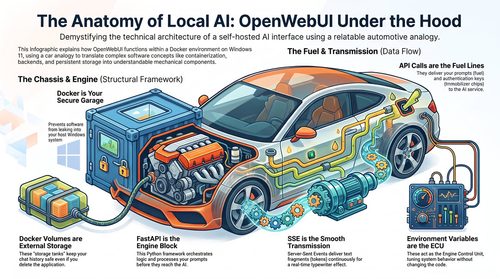






Estimated reading time at 200 wpm: 7 minutes
OpenWebUI has been active in updating its software. Each upgrade makes for a snappier more reliable setup in Docker (as I tested and found on my W11 computer).
Whether or not you agree our Fat Disclaimer applies
This guide is notes-to-self on upgrading OpenWebUI when it runs as a single Docker container on Windows 11 using PowerShell. It assumes the following setup:
- Image:
ghcr.io/open-webui/open-webui:main - Container name:
open-webui - Port mapping:
3000:8080(accessed athttp://localhost:3000) - Data volume:
open-webui(a named Docker volume holding the SQLite database, settings, API keys, chat history, and all user data) - Restart policy:
always
OpenWebUI stores everything in a SQLite database inside the Docker volume. Major version upgrades apply one-way database migrations using Alembic. It lives inside the Docker container — it’s bundled with the OpenWebUI application code. Every time the container starts, OpenWebUI calls Alembic internally to check and apply any pending database migrations. Nothing to install on the host side.
If you don’t know anything about this, you’ll never know what you’re missing if you move on – so, move on. NOW!
Once a migration has reshaped the database, older versions of OpenWebUI will not recognise it. A pre-upgrade backup of the volume is therefore the only reliable rollback path. Without it, recovery is not possible.
This procedure has been tested across four successive upgrades (v0.9.6 → v0.10.2 → v0.11.0 → v0.11.1 → v0.11.2), all clean.
Step 1 — Navigate to the backup folder
Open PowerShell and change to the directory where upgrade backups are kept:
cd "C:\your-preferred-folder\OPENWEBUI(BKPS)"
All backup files created during this procedure will land in this folder.
Step 2 — Stop the running container
docker stop open-webui
This sends a graceful shutdown signal to the container. Docker will echo the container name (open-webui) back to confirm it has stopped. The data volume remains intact — stopping a container does not touch its mounted volume.
Step 3 — Back up the data volume
docker run --rm -v open-webui:/data -v ${PWD}:/backup alpine tar czf /backup/owui-pre-<VERSION>-<DATE>.tar.gz -C /data .Replace <VERSION> with the version about to be installed and <DATE> with today’s date. For example:
docker run --rm -v open-webui:/data -v ${PWD}:/backup alpine tar czf /backup/owui-pre-0.11.2-2026-08-31.tar.gz -C /data .What this does: It spins up a tiny temporary Alpine Linux container, mounts the open-webui volume at /data and the current PowerShell directory at /backup, then creates a compressed tarball of everything in the volume. The --rm flag deletes the Alpine container automatically once the tar completes.
Verify the backup exists and has real size:
dir owui-pre-0.11.2-2026-08-31.tar.gz
The file should be roughly 1–1.5 GB, consistent with previous backups. If it is a few more than 0.3 GB, something probably went wrong — stop here and investigate before proceeding. Do not continue until the backup is confirmed.
Step 4 — Tag the current image and pull the new one
Tag the current image
docker tag ghcr.io/open-webui/open-webui:main ghcr.io/open-webui/open-webui:pre-<VERSION>
For example:
docker tag ghcr.io/open-webui/open-webui:main ghcr.io/open-webui/open-webui:pre-0.11.2
What this does: It gives the currently installed image a second label before it gets overwritten by the pull. If the new version needs to be reverted quickly, this tagged image can be used to recreate the container without re-downloading anything. No output means success.
Pull the new image
docker pull ghcr.io/open-webui/open-webui:main
This downloads the latest :main image from the GitHub container registry. It will take a minute or two depending on connection speed. Docker will show layer download progress and finish with a digest and status line. Ignore any “docker scout” suggestions — that is an advert, not a required step.
Step 5 — Remove the old container and create a new one
Remove the stopped container
docker rm open-webui
Docker will echo the container name back. This removes the container definition only — the data volume is untouched.
Create the new container
docker run -d -p 3000:8080 -v open-webui:/app/backend/data --name open-webui --restart always ghcr.io/open-webui/open-webui:main
What each flag does:
-d— run in the background (detached mode)-p 3000:8080— map port 3000 on the host to port 8080 inside the container-v open-webui:/app/backend/data— mount the existing data volume so the new container picks up all existing data--name open-webui— name the container for easy reference--restart always— restart the container automatically if it stops or the machine reboots
Docker will return a long hexadecimal string (the container ID). That is normal.
PowerShell QuickEdit trap
If nothing happens after pasting the command and pressing Enter, press Esc then Enter again. Windows PowerShell has a QuickEdit mode where clicking anywhere in the console window pauses execution. The command may have been accepted but not submitted. This has caused false “hang” alarms on every previous upgrade.
Step 6 — Check the logs
docker logs open-webui
What to look for:
- Alembic migration lines — these appear near the top if the new version includes database schema changes. They indicate the database is being reshaped to match the new code. If they complete without error, the migration succeeded.
- The OpenWebUI ASCII banner — a large text logo showing the version number confirms the application has started.
- “Started server process” and “Waiting for application startup” — these confirm the web server is running and ready to accept connections.
Important: Use docker logs, not docker logs -f. The -f flag follows the log stream and will sit with a blinking cursor indefinitely, which looks identical to a hang. Plain docker logs prints what has been logged so far and returns the prompt.
Step 7 — Verify in the browser
Open http://localhost:3000 in a browser. Press Ctrl-F5 to hard-refresh and clear any cached frontend from the previous version.
Check three things:
- Login works — either the session is still active or the login page accepts credentials
- Chats are present — scroll the sidebar to confirm conversation history survived
- A model responds — send a test message to confirm API connectivity
If all three pass, the upgrade is complete.
Rollback
If the upgrade fails and the application does not start or data is missing, two rollback paths exist:
Quick rollback (container only, no data restore)
This reverts the application code but keeps the current database. Only useful if the database was not migrated or migration did not corrupt anything:
docker stop open-webui
docker rm open-webui
docker run -d -p 3000:8080 -v open-webui:/app/backend/data --name open-webui --restart always ghcr.io/open-webui/open-webui:pre-<VERSION>
Full rollback (restore the volume from backup)
This restores both the application and the database to their exact pre-upgrade state:
docker stop open-webui
docker rm open-webui
docker volume rm open-webui
docker volume create open-webui
docker run --rm -v open-webui:/data -v ${PWD}:/backup alpine tar xzf /backup/owui-pre-<VERSION>-<DATE>.tar.gz -C /data
docker run -d -p 3000:8080 -v open-webui:/app/backend/data --name open-webui --restart always ghcr.io/open-webui/open-webui:pre-<VERSION>
Replace <VERSION> and <DATE> with the values used in Step 3 and Step 4.
Backup housekeeping
Each backup tarball is roughly 1.2 GB. After confirming an upgrade is stable (a week of normal use is a reasonable threshold), older backups can be deleted. Keep at least the most recent two.
Known PowerShell traps
QuickEdit mode: Clicking anywhere in the PowerShell window selects text and pauses execution. The command appears to hang. Press Esc to deselect, then Enter to submit.
docker logs -f false hang: The -f flag follows the log stream and never returns the prompt on its own. It will sit with a blinking cursor after startup completes. This is normal waiting behaviour, not a hang. Use docker logs (without -f) instead, or press Ctrl-C to exit the follow mode.
Conclusion
The path is now clear. Updating OpenWebUI is streamlined and efficient.
This is not for ‘everybody’ because OpenWebUI, is like Greek or Sanskrit to most people.