







Estimated reading time at 200 wpm: 9 minutes
This is a record of installing WinBoat on BigLinux as a proof of concept for running Windows applications natively within a Linux environment. The goal was to understand the process well enough to repeat it on another Linux machine. Snagit (Techsmith) which usually is constrained to Windows was used as the test subject app.
Whether or not you agree our Fat Disclaimer applies
System: BigLinux (Arch-based, KDE Plasma, X11) running on a dualboot desktop with W11 Pro.
Hardware: Intel CPU (40 threads, VT-x), 15GB RAM, 187GB home partition
Outcome: Success. Snagit installed on the W11 within Winboat running in BigLinux. It functioned normally. What this means is that for some important apps. I do not need to log out of BigLinux, then reboot into W11 on the dual boot system.
This is ‘notes to self’ for when replicating on BigLinux Laptop.
Why Not Wine?
Wine works well for many applications but fails unpredictably with software that relies on newer Windows APIs, heavy DRM, or proprietary frameworks. WinBoat sidesteps all of that by running actual Windows. If it works on Windows, it works on WinBoat. WinBoat is not Wine. It does not translate Windows API calls. It runs a real, containerised Windows 11 instance inside Docker using KVM virtualisation, then uses FreeRDP with Microsoft’s RemoteApp protocol to display individual Windows application windows directly on the Linux desktop. The result looks and behaves like a native Linux window — but it is actually Windows.
The project is open source, free, and currently in beta. GitHub: TibixDev/winboat.
System Checks Before Starting
Before touching anything, verify the system meets WinBoat’s requirements.
CPU Virtualisation
egrep -c '(vmx|svm)' /proc/cpuinfo && lscpu | grep -i virtualizLook for a number above zero and VT-x (Intel) or AMD-V (AMD). Without this, nothing will work.
KVM Active
ls /dev/kvmIf /dev/kvm exists, KVM is active. No further action needed.
RAM and Disk
free -h && echo "---" && df -h ~WinBoat needs at least 4GB RAM and 32GB free disk space. You cannot allocate more than half your total RAM to the Windows VM.
Session Type (Wayland vs X11)
echo $XDG_SESSION_TYPE && echo $WAYLAND_DISPLAYIf the result shows x11, there are no display compatibility concerns. Wayland support in FreeRDP has historically been patchy – this may be an issue when attempting to replicate on laptop which is Wayland.
Installing Docker
BigLinux is Arch-based and uses pamac, not apt. Despite reporting Ubuntu in some system fields, the correct package manager is pamac.
pamac install --no-confirm docker docker-composeThis installs Docker Engine, Docker Compose, containerd, and runc — around 254MB total.
After installation, add your user to the docker group:
sudo usermod -aG docker $USERStart Docker:
sudo systemctl start dockerThe systemd unit is created automatically by the post-install hook. The symlink is created during install so systemctl enable is not needed separately.
Reboot (or log out and back in) to activate group membership.
Verify Docker
After rebooting:
groups | grep docker
docker run hello-world
Both should succeed without sudo. If hello-world prints its success message, Docker is working correctly.
Installing FreeRDP
WinBoat requires FreeRDP version 3.x. On BigLinux:
pamac install --no-confirm freerdpThe extra repository carries version 3.23.0 at time of writing.
Downloading WinBoat
WinBoat is distributed as an AppImage, which is the correct format for Arch-based systems. Do not use the .deb or .rpm packages.
Download from: github.com/TibixDev/winboat/releases
Select the file ending in -x86_64.AppImage.
Move it somewhere permanent before running it:
mkdir -p ~/Applications && mv ~/Downloads/winboat-*.AppImage ~/Applications/
chmod +x ~/Applications/winboat-*.AppImage
Launching WinBoat
~/Applications/winboat-*.AppImage &The & is important. It detaches WinBoat from the terminal session. If you forget it and close the terminal, WinBoat disappears.
On first launch, BigLinux’s AppImageLauncher will offer to integrate the app. Choose Integrate and run. This moves the AppImage to ~/Appimage/ (note the capital A) and adds it to the KDE application menu. After this, launch WinBoat from the application menu rather than the terminal.
If you need to relaunch from terminal after integration, find the exact filename first:
find /home/$USER -name "*.AppImage" 2>/dev/nullThen run it with & appended, and follow with disown so the terminal can be closed safely:
/home/$USER/Appimage/winboat-*.AppImage &
disown
WinBoat Setup Wizard
Prerequisites Screen
WinBoat checks all requirements automatically. With the steps above completed and a reboot done, all items should show green ticks:
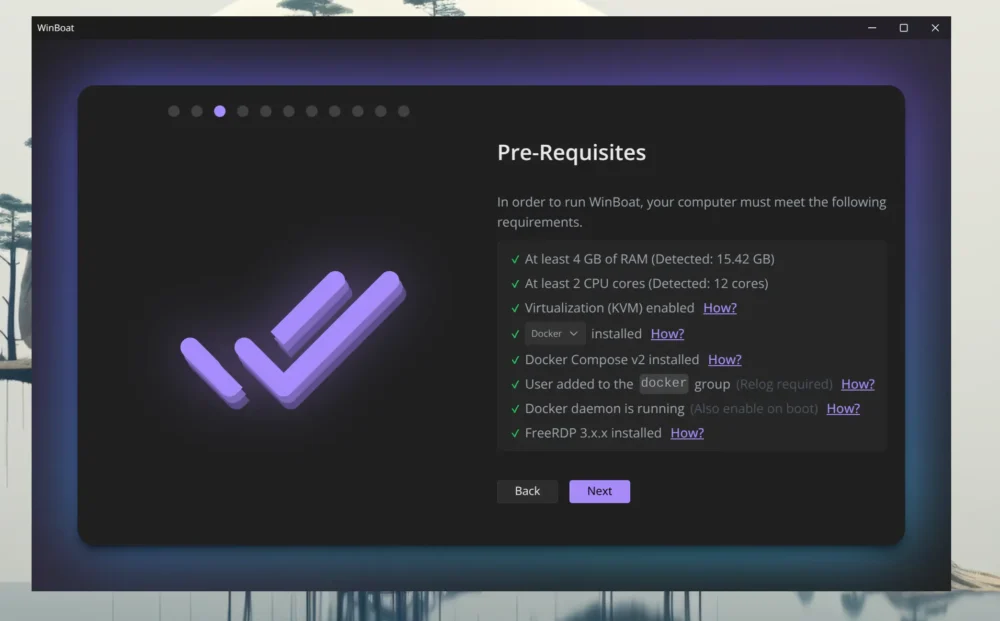
- At least 4GB RAM
- At least 2 CPU cores
- Virtualisation (KVM) enabled
- Docker installed
- Docker Compose v2 installed
- User added to docker group
- Docker daemon running
- FreeRDP 3.x installed
If anything shows red, address it before proceeding.
Install Location
Default is ~/winboat. This is fine if your home partition has sufficient space. The Windows VM and all its data live here.
Windows Version
WinBoat defaults to Windows 11 Pro in English. Leave the ISO field empty — WinBoat downloads Windows automatically. This is a significant download and the installation takes 30–60 minutes depending on internet speed.
You do not need a product key to install. Windows runs unactivated with a small watermark in the corner. All core functionality works normally without activation.
Hardware Configuration
Recommended settings for a machine with 15GB RAM:
- CPU Cores: 2
- RAM: 6GB (do not exceed half your total system RAM)
- Disk: 32GB minimum — though see the section below on expanding this
Home Folder Sharing
This mounts your Linux home directory as a network drive inside the Windows VM, making Linux files accessible from Windows without copying.
This is purely local — between your Linux host and the Windows container. It has no connection to any native Windows installation on another partition (e.g. a dual boot setup). The WinBoat Windows instance and a dual boot Windows are completely independent of each other.
The sharing does expose Linux files to Windows-specific malware, so exercise the same caution you would on any Windows machine when browsing the web from within WinBoat.
Review and Install
Confirm the configuration summary and click Install. Leave it to run. If the system freezes mid-install, WinBoat detects the incomplete state on next launch and can resume or restart.
After Installation
Home Screen
The WinBoat Home screen shows the Guest API status, container status, and live CPU, RAM, and disk usage for the Windows VM.
Apps Screen
Lists all detected Windows applications. After installing additional software inside Windows, new apps appear in this list and can be launched directly — they open as individual windows on the Linux desktop without needing to open the full Windows desktop first.
Launching the Windows Desktop
Click on the Windows Desktop entry in the Apps list. The full Windows 11 desktop opens quickly — typically faster than a cold boot of a native Windows installation, because KVM handles virtualisation efficiently.
Initial Windows Configuration
Keyboard Layout
Windows defaults to a US keyboard layout. Fix this immediately if you are in the UK:
Settings > Time & Language > Language & Region
Add English (United Kingdom) and set it as the keyboard input. The @ symbol is the most immediately painful difference between UK and US layouts — do this first before trying to log into anything.
Display Scaling
WinBoat uses FreeRDP for display, which mirrors your Linux desktop resolution. Changing resolution from within Windows has no effect as FreeRDP overrides it on reconnect.
Fix display scaling through WinBoat’s Configuration panel, not through Windows Settings.
Installing Applications
Download installers from within the Windows Desktop browser, install normally, and they appear in WinBoat’s Apps list. Launch them directly without opening the full Windows desktop each time.
Clipboard integration works between Linux and Windows — screenshots taken with Snagit inside WinBoat can be pasted directly into Linux applications.
Expanding the Windows Disk
The default 32GB disk fills quickly with Windows updates and installed software. To expand it, first install qemu-img:
pamac install --no-confirm qemu-imgStop the Windows container from WinBoat’s Home screen, then close WinBoat entirely.
Find the disk image:
find ~/winboat -name "*.img" 2>/dev/nullResize it (example: expanding to 50GB):
qemu-img resize ~/winboat/data.img 50GVerify the result:
qemu-img info ~/winboat/data.imgRelaunch WinBoat and start the container. The extra space appears as unallocated in Windows Disk Management (right-click Start > Computer Management > Disk Management).
Note: A Recovery Partition sits between C: and the unallocated space, which prevents a simple Extend Volume from within Disk Management. Removing it requires diskpart from the Windows command line. For a WinBoat instance used only to run specific apps, the Recovery Partition is not needed — reinstalling via WinBoat is more practical than using Windows recovery tools.
Shutting Down and Restarting WinBoat
To shut down: Click the stop button on WinBoat’s Home screen to stop the Windows container, then close WinBoat normally.
To restart: Launch WinBoat from the KDE application menu. The container starts automatically. If it does not, click the start button on the Home screen.
Do not close WinBoat by closing the terminal unless you launched it with & and ran disown first.
Security
Windows Defender is active by default and provides baseline protection. The container isolation means malware inside Windows cannot easily reach the Linux host.
No additional antivirus is required for a single-purpose setup. For regular web browsing within WinBoat, Malwarebytes Free is a lightweight option — run it on demand rather than leaving real-time scanning active.
Windows Activation
Windows runs unactivated without a key. A watermark appears in the bottom right corner of the Windows desktop. All core functionality works normally without activation.
If you decide to activate, grey market resellers offer legitimate keys significantly cheaper than Microsoft’s retail price. Check recent Trustpilot reviews before purchasing from any vendor.
Things Still To Do
- Expand C: drive by removing the Recovery Partition using
diskpart - Decide whether to activate Windows
- Repeat this entire process on the second Linux laptop
Key Differences from a Standard Ubuntu/Debian Install
BigLinux is Arch-based. Several steps differ from guides written for Ubuntu:
| Task | Ubuntu/Debian | BigLinux/Arch |
|---|---|---|
| Install Docker | apt install docker.io | pamac install docker |
| Install FreeRDP | apt install freerdp2-x11 | pamac install freerdp |
| Package manager | apt | pamac |
| Docker service | Created by apt install | Created by pamac post-install hook |
| AppImage format | .deb works natively | Use AppImage only |
Record compiled from live installation session, April 2026.