






Estimated reading time at 200 wpm: 9 minutes
Visual Studio Code (VS Code) is widely recognised as the industry standard for software development. However, its core strength—managing complex text files with precision—makes it an exceptionally powerful tool for authors of fiction and non-fiction alike. Luddites and lazy folk should stop right now – leave this blog and get back to Netflix, Instagram and dog-bathing!
Whether or not you agree our Fat Disclaimer applies
For writers accustomed to traditional word processors, VS Code offers a paradigm shift. It moves away from the linear “page” view and towards a structural view of a manuscript. This guide explores how to configure VS Code to assist with outlining, deep editing, version control, and data safety, transforming it into a robust production studio for writers. VS Code can run PowerShell to stitch a whole manuscript – in a flash – from several chapter files in .md format from among several chapter folders. I am aware that Scrivener and similar would do this as well without need for PowerShell. I adopt VS Code at this stage by a process of ‘evolution’ having tried other software. It’s about what works for me in my use case scenarios and for my workflows. In other words, I’ve arrived at it as a point of wisdom through my experience. Others may find VS Code useless or cumbersome for their purposes. So this article does not mean that ‘everybody’ should use VS Code or that it will benefit ‘everybody’.
This article is not a tutorial on how to use install and use VS Code. Spoon-feeding does not happen from this site. To get spoon fed you use YouTube and Google. All I will say is that VS Code is free and very versatile for a number of purposes – not just authoring books. Don’t ask me if it works on Apple computers – don’t even think of asking. GIYF!!!
I am well aware – and need no reminding – that there are at least a dozen other good software out there that authors can use. I’m not saying that VS Code is the best or that it suits ‘everybody’. Scrivener is quite good but takes a lot of time to learn and become efficient with.
Structural Outlining and Text Management
The primary advantage VS Code offers an author is the ability to treat a manuscript as a project rather than a single document. By separating chapters or scenes into individual Markdown (.md) files, authors can navigate massive word counts instantly without scrolling through hundreds of pages.
VS Code’s “Explorer” sidebar allows writers to view their file structure at a glance. Folders can be organised by act, chapter, or character notes, and files can be dragged and dropped to restructure a narrative effortlessly. This modular approach prevents the sluggishness often found in traditional word processors when handling documents exceeding 50,000 words.
Advanced Search and Replace
One of the most potent features for an author is the Global Search. Unlike standard editors that search only the open document, VS Code searches the entire project folder directory instantly.
The Global Search Workflow
Accessed via Ctrl + Shift + F, the search sidebar provides a list of every instance a word appears across all files. This is critical for continuity checks (e.g., ensuring a character’s eye colour remains consistent across a trilogy).
To replace a single word or string of words Ctrl + Shift + F does the trick. See example below. I would have taken a considerable amount of time to do those changes in Typora or MS Word, as each file would need to be opened.
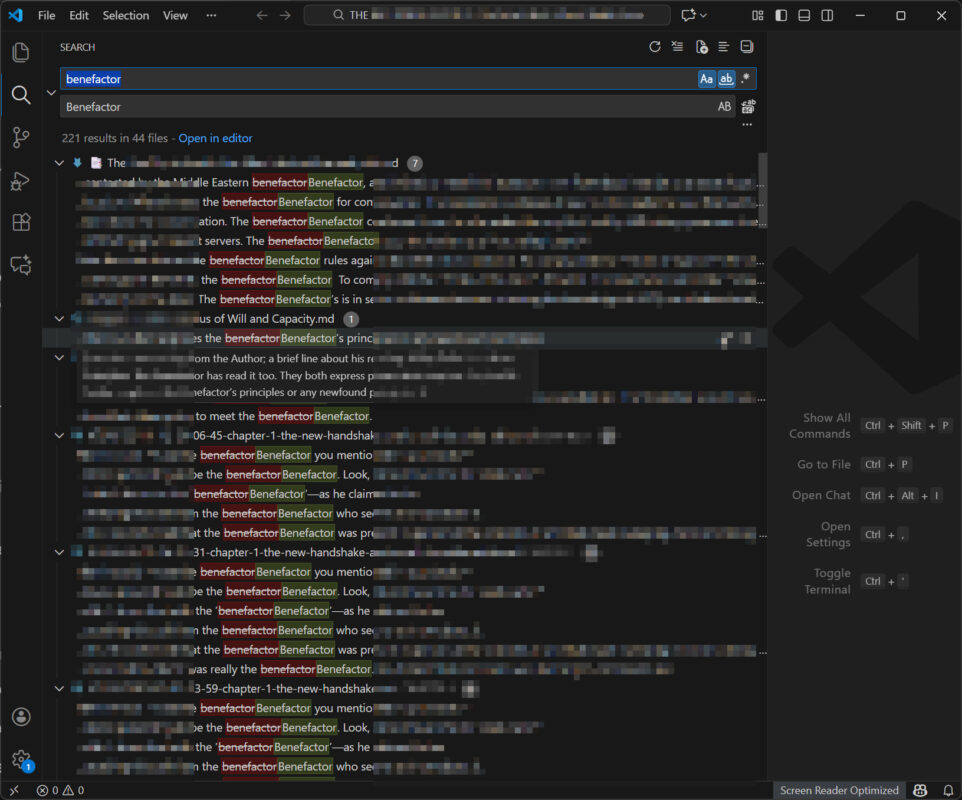
Precision Tools
To ensure accuracy, the search bar includes three toggle settings:
- Match Case (
Aa): Ensures that searching for a proper noun does not return lower-case instances (vital for character names that are also common nouns). - Match Whole Word (
ab): Prevents a search for “Art” from returning results for “Heart” or “Start”. - Regular Expression (
.*): Allows for complex pattern matching.
Excluding Distractions
Authors often keep backup folders or old drafts within their project directory. To prevent these files from cluttering search results, specific exclusion patterns can be applied.
- In the Search Details (accessed by clicking the ellipsis
...in the search panel), authors can define “files to exclude”. - Pattern Example: Entering
**/Backup/**instructs the software to ignore any folder named “Backup” regardless of where it is located in the file structure. - Permanent Setting: These exclusions can be saved permanently via
Settings>Search: Exclude, ensuring a clean workspace every time the application opens.
The Time Machine: Timeline and Local History
Perhaps the most significant departure from traditional writing workflows is the elimination of “versioned” filenames (e.g., Chapter1_v2_final.md). VS Code utilises a feature called Timeline, which automatically tracks local history.
How Timeline Works
Located at the bottom of the Explorer sidebar, the Timeline view records a snapshot of the file every time it is saved.
- Granularity: It captures changes made minutes or hours ago, far more frequently than a writer might manually duplicate a file.
- Diff View: Clicking on a previous timestamp opens a “Difference” view. This displays the old version on the left and the current version on the right, using green and red highlighting to show exactly which words were added or deleted.
This feature allows authors to confidently delete sections of text, knowing they can “resurrect” them instantly from the Timeline without cluttering their hard drive with duplicate files.
Distraction-Free Writing Environment
While VS Code is a complex tool, it can be stripped down to a minimalist interface for the drafting phase.
Zen Mode
Activated via Ctrl + K, followed by Z, Zen Mode removes all sidebars, menus, and tabs, leaving only the text editor. This replicates the experience of dedicated distraction-free writing software.
Typewriter Scrolling
By installing an extension such as Typewriter Auto-scroll, the active line of text remains fixed in the vertical centre of the screen. This prevents the author from having to look at the bottom of the monitor constantly, reducing neck strain during long writing sessions.
Essential Extensions
As VS Code is built for code, it requires minor customisation for prose:
- Code Spell Checker: A vital extension that provides standard spell-checking (squiggly underlines). It allows authors to add fantasy or sci-fi terminology to a custom dictionary to prevent false positives.
- Word Count: Various extensions are available to add a real-time word counter to the status bar.
Data Safety and Backups
A robust backup strategy is essential. It is recommended to employ a “Hybrid Strategy” that utilises three layers of protection.
Layer 1: Cloud Synchronisation (The Foundation)
The working directory should reside within a cloud-synced folder (such as OneDrive or Dropbox). This protects against hardware failure (e.g., a stolen laptop).
Layer 2: Local History (The Safety Net)
VS Code’s Timeline protects against user error (e.g., accidental deletion). Note that this history is stored locally in the system’s AppData folder; if the computer is wiped, this history is lost.
Layer 3: Hard Snapshots (The Archive)
For permanent versioning, a PowerShell script can be utilised to copy the entire project to a separate backup location. This script creates a timestamped folder, ensuring a permanent, frozen copy of the manuscript exists at that moment in time.
Example PowerShell Backup Script:
# --- CONFIGURATION ---
$sourceDir = "C:\Users\YourName\OneDrive\MyBook"   # Current Working Directory
$backupDir = "D:\MyBook_Backups"                   # Destination for Backups
# ---------------------

# Generate timestamp for the folder name
$timestamp = Get-Date -Format "yyyy-MM-dd_HHmm"
$targetFolder = "$backupDir\Backup_$timestamp"

# Create the new directory
New-Item -ItemType Directory -Force -Path $targetFolder | Out-Null

# Copy only Markdown files recursively
Get-ChildItem -Path $sourceDir -Filter *.md -Recurse | Copy-Item -Destination {
    $dest = Join-Path $targetFolder $_.FullName.Substring($sourceDir.Length)
    New-Item -ItemType Directory -Force -Path (Split-Path $dest) | Out-Null
    return $dest
} -Force

Write-Host "Backup Complete. Saved to: $targetFolder" -ForegroundColor Green
Start-Sleep -Seconds 3
Automating Manuscript Assembly (Stitching)
For authors who maintain chapters in separate folders (e.g., CHAPTER 1, CHAPTER 2) with multiple version files inside, manually assembling a full draft is tedious. A PowerShell script can automate this process by scanning each folder, identifying the most recently modified file, and stitching them into a single master document.
Step 1: Enable Scripts in Windows
By default, Windows prevents custom scripts from running for security reasons. To allow your own scripts to run:
- Open the Start Menu and search for PowerShell.
- Right-click it and select Run as Administrator.
- Type the following command and press Enter:
Set-ExecutionPolicy RemoteSigned - Type
Yto confirm. This allows you to run scripts you create locally.
Step 2: The Stitching Script
Save the following code as StitchChapters.ps1 in project folder. When run, it will merge the latest version of every chapter into a file named Full_Manuscript.md.
# --- CONFIGURATION ---
# Path to your master CHAPTERS folder
$chaptersDir = "D:\Path\To\Your\CHAPTERS"
$outputFile = "D:\Path\To\Your\Full_Manuscript.md"
# ---------------------

# Clean up old output file
if (Test-Path $outputFile) { Remove-Item $outputFile }

Write-Host "Starting the stitch process..." -ForegroundColor Cyan

# Get all "CHAPTER X" folders and sort them numerically
$chapterFolders = Get-ChildItem -Path $chaptersDir -Directory |
                  Where-Object { $_.Name -match "^CHAPTER \d+$" } |
                  Sort-Object { [int]($_.Name -replace "\D") }

foreach ($folder in $chapterFolders) {
    # Find the NEWEST markdown file in this folder (ignoring backups)
    $latestFile = Get-ChildItem -Path $folder.FullName -Filter *.md |
                  Sort-Object LastWriteTime -Descending |
                  Select-Object -First 1

    if ($latestFile) {
        Write-Host "Processing $($folder.Name): Found $($latestFile.Name)" -ForegroundColor Green

        # Add a visual header and the content
        $header = "`n`n<!-- NEW CHAPTER: $($folder.Name) -->`n"
        Add-Content -Path $outputFile -Value $header
        Get-Content $latestFile.FullName | Add-Content -Path $outputFile
    }
}

Write-Host "All done! Manuscript saved." -ForegroundColor Yellow
Conclusion
By adopting Visual Studio Code, some authors with specific needs can gain access to a suite of tools typically reserved for software engineers. The combination of global search, granular version history, and distraction-free writing modes creates an environment that supports both the creative flow of drafting and the analytical precision required for editing.


The £15 Anthropic Fuel Plan: complete with digital range anxiety
Captain Walker