





Estimated reading time at 200 wpm: 11 minutes
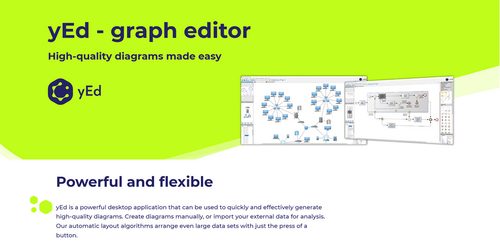
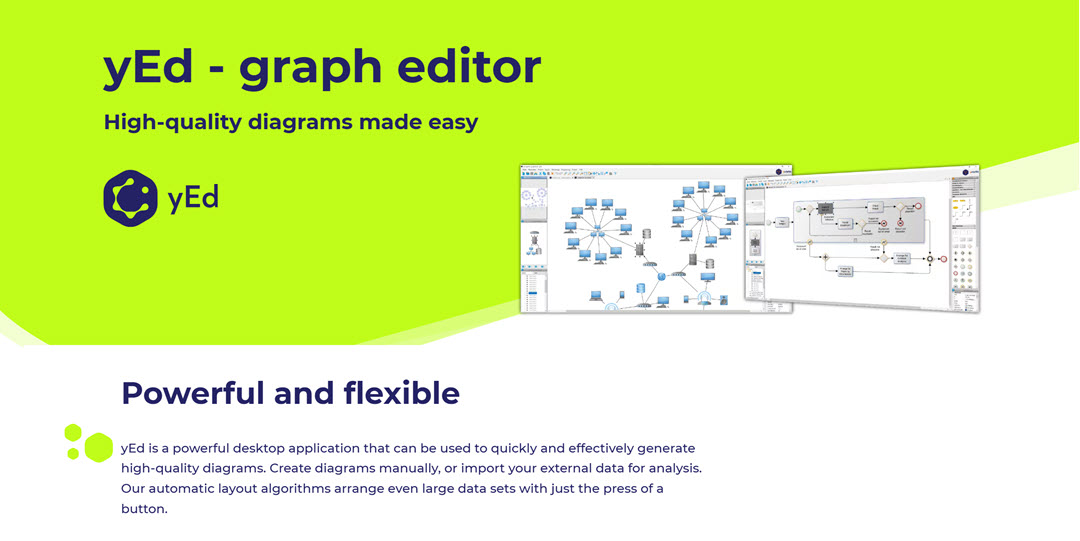
After many years of working with all sorts of flow charting and mapping software, I recently discovered yED quite by accident. If Draw.io is a Jaguar, then yED is a Rolls Royce and a Lambo all in one. Teslas are not in this race! 😊
Whether or not you agree our Fat Disclaimer applies
What’s in the ‘tin’? It’s best to say how it can work, and how I’ve been working yED. I might have some complex document with dates and times, or I might have a journal, or a dense legal judgement to fathom. Do I need to be spending umpteen hours reading it all? Years ago, the tools did not exist to allow for extraction of key content and link them up for coherence. So, one had no choice but to spend part of your life reading. But there is a problem with reading hundreds of pages in the traditional way. Ink and quill had to be used to make notes and then try and process what the document was saying.
Then came mindmaps and flowcharts like MindManager, and Draw.io. Those were great and still are. But using them for extraction of meaning is still a manual task. yED is still a thing that can require manually drawing nodes and connections etc. However there is smarter way. I’d throw a 1.3 Mb file or two into my bespoke AI interface, ask for some preliminary summaries, discuss the document(s) and then formulate a way for how the various parts connect.
That’s where yED comes in. yED uses .graphml which is a form of .xml file. AI models can read tons of text, extract important parts and arrange them into something valuable. The file produced is then read by yED and my human eyes. I can make adjustments and learn the information faster. Instead of 10 hours of reading a 325 paragraph judgement, I read for maybe 1 hour while interacting with AI extractions. Then I task AI to create the .graphml file from the judgement and other things discussed. The process is done by specific components drafted in my OpenWebUI on Docker setup using GLM 4.7 Flash, GLM 5.3 flash, or DeepSeek V4 Pro. AI will crunch away for a few minutes and produce the file. That is downloaded automatically. I then double click it to open in yED and make any adjustments.
The following is a sample output after reading on a topic. It’s a distillate from about 10,000 words of text. What I need is not to remember every word. I need core concepts and to know how things are connected. I can always check the text for greater detail when needed.
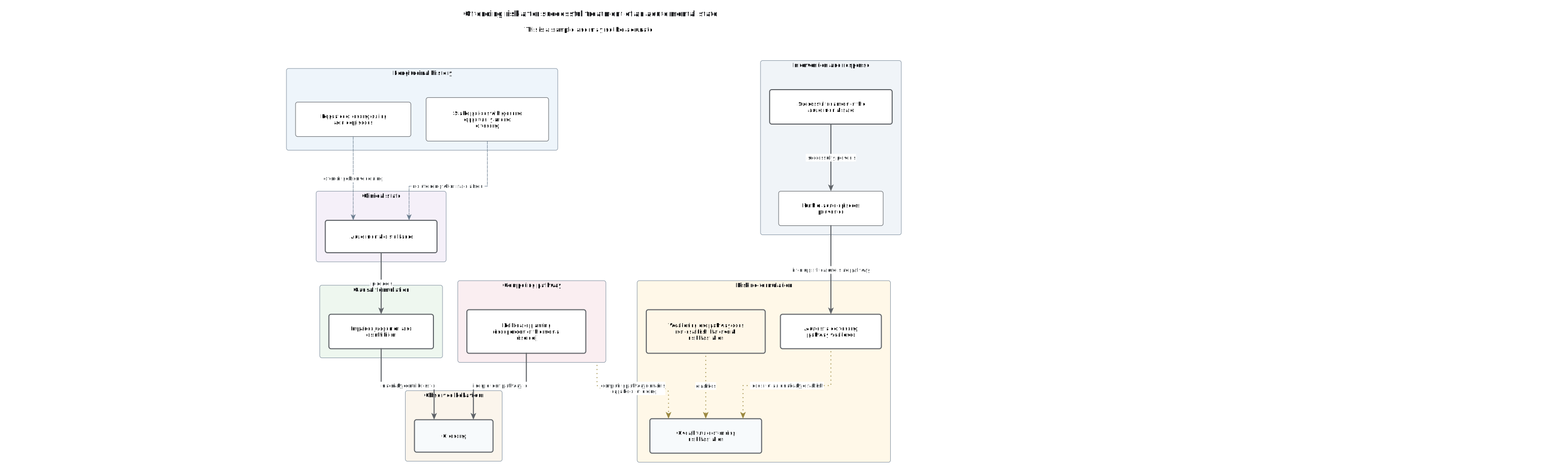
Some manual work is needed to adjust the charts e.g. new nodes and connections. That means I need to know how yED works. If you never owned and drove a Rolls Royce before, you’d be foolish to just jump drive off without understanding the controls and how such a fine machine works. How? How about crashing it shortly after taking off.
So learning about yED was a whole new learning experience for me. I make notes. Or wait – I got my AIs to help make notes about the features I was tweaking and practicing. But other people can make their own choices to spend days doing the same by ink and quill, if they want to.
The following are my notes to self. If it helps someone else, then fine. If it’s useless to ‘everybody’, still fine by me!
1. Core elements
| Term | Meaning |
|---|---|
| Node | Any shape object: box, diamond, ellipse, actor. Graph theory calls it a vertex; yEd uses node |
| Edge | A line connecting two nodes |
| Directed edge | An edge with an arrowhead; direction carries meaning |
| Undirected edge | A plain line; direction carries no meaning |
| Label | Text attached to a node or an edge |
| Group node | A container holding other nodes; groups can nest |
| Folder node | A group in collapsed form, displayed as a single small node |
2. Edge anatomy
| Term | Meaning |
|---|---|
| Source | Where an edge starts |
| Target | Where an edge ends; the arrowhead points here on directed edges |
| Bend | An intermediate point where the edge changes direction; shown as a small draggable handle |
| Edge path | The full sequence of points an edge follows, bends included |
| Port | The exact spot on a node’s border where an edge attaches |
| Self-loop | An edge from a node back to itself |
| Parallel edges | Two or more edges between the same pair of nodes |
3. Graph structure
Terms that appear in layout dialogs and manuals.
| Term | Meaning |
|---|---|
| Adjacent / neighbour | Nodes joined by an edge |
| Degree | The number of edges touching a node; in-degree and out-degree count arrows in and out |
| Path | A chain of edges from one node to another |
| Cycle | A path that returns to its starting node |
| DAG | Directed acyclic graph: arrows flow one way, no loops. The structure Hierarchical layout expects |
| Component | An island: nodes linked to each other but to nothing else |
| Subgraph | Any subset of nodes together with the edges between them |
| Root / leaf | Tree terms: the node with no parents / nodes with no children |
| Parent / child | Immediate superior and subordinate in a tree |
| Predecessor / successor | The same relationship in any directed graph |
| Hub | A node with very high degree |
| Weight | A number attached to an edge, such as cost, strength or frequency |
4. Routing styles
The four shapes an edge can take.
| Style | Appearance |
|---|---|
| Straight | One direct segment at any angle |
| Orthogonal | Horizontal and vertical segments only, right-angle turns |
| Polyline | Straight segments at any angle, like a hand-drawn route |
| Organic | Smooth curves |
5. Interface terms
| Term | Meaning |
|---|---|
| Palette | The panel of ready-made shapes dragged onto the canvas |
| Canvas | The drawing area |
| Overview | The minimap window |
| Navigator | A window showing the group hierarchy as a tree |
| Neighbourhood view | A popup showing a selected node’s edges and neighbours |
| GraphML | The XML format yEd saves; the format AI tools generate |
| Snap to grid | Aligns nodes to an invisible grid while dragging |
6. The Layout menu
Every layout algorithm answers one question: where should the nodes sit? The menu falls into three families. Two further menu rows move no nodes at all.
Structural layouts assume the graph already has a shape and arrange nodes to expose it.
| Option | Principle | Typical use |
|---|---|---|
| Hierarchical | Nodes stack in layers so edges flow consistently one way | Processes, causal chains, timelines |
| Tree | Strict parent-child descent from a single root | Org charts, taxonomies, breakdowns |
| Circular | Connected nodes placed on a ring | Fully interconnected groups |
| Radial | One hub in the centre, others on concentric rings | Hub-and-spoke structures |
| Series Parallel | Recognises sequences with parallel branches | Flowchart-shaped graphs |
| Orthogonal | Nodes aligned horizontally and vertically | Schematic, technical drawings |
Force layouts discover a shape rather than assume one.
| Option | Principle | Typical use |
|---|---|---|
| Organic | Simulates physics: nodes repel, edges pull like springs; clusters emerge | Networks with no inherent direction |
| Components | Finds disconnected islands and lays each out separately, packed side by side | Maps containing legitimate separate parts |
| Random | Scatters all nodes | A reset before re-running a layout that has settled badly |
Domain notations implement specific diagram languages: Swimlane (columns for roles or phases), Flowchart (decision diamonds, start and end nodes), BPMN (business process notation), SBGN (biology pathways), Family Tree (generations and marriages), Tree Map (containment rectangles). Relevant only when a map follows one of those notations.
The two special rows
| Row | Effect |
|---|---|
| Edge Routing | Redraws lines; node positions stay fixed |
| Label Placement (Alt+Shift+L) | Moves only labels, nudging them clear of lines and each other |
| Selection (Partial) (Alt+Shift+P) | Applies the chosen layout to selected nodes only, leaving the rest fixed |
Layouts rearrange; they never rewire. What is connected to what is unaffected by any entry in the Layout menu, which makes the whole menu safe to explore with undo (Ctrl+Z) as a safety net.
7. Edge routing in practice
The moved-node problem
Moving a node changes only the segments adjacent to it. Everything further along the edge keeps its old geometry, which is why edges look broken or deformed after a manual move. The remedy is selective rerouting: select the moved node and reroute only its edges. Do not repair bends by hand; the router regenerates them in seconds.
Orthogonal Channel router
Layout → Edge Routing → Orthogonal Channel. Redraws edges using vertical and horizontal segments while keeping all node positions fixed. Designed for exactly the interactive case where nodes have been moved and edges need redrawing.
| Setting | Effect |
|---|---|
| Path Finding Algorithm | High Quality uses a shortest-path algorithm: slower, better results. High Performance uses a pattern algorithm: faster, more node overlaps |
| Scope | All Edges, Selected Edges, or Edges at Selected Nodes |
| Minimum Distance | Clearance between parallel edge segments; the router reduces it selectively only where space runs out |
| Enable Grid Routing | Constrains paths to a grid; Grid Spacing sets the grid density |
| Bend Cost | Cost per bend; raising it yields straighter paths |
| Edge Crossing Costs | Cost per crossing; raising it yields fewer crossings |
| Node Overlap Costs | Cost for paths overlapping nodes; raising it yields cleaner avoidance |
Rerouted edges keep their style, arrowheads and labels; only geometry changes.
Organic routing
Layout → Edge Routing → Organic reroutes edges as smooth curves while keeping node positions fixed. The curved alternative when right angles do not suit the map.
Caveats
- Orthogonal routing produces stair-shaped paths. For flowing curves, use Organic.
- Routing minimises crossings but cannot eliminate them. Some crossings arise from the topology itself: when one node feeds several and several converge on one, crossings are unavoidable at certain node placements.
- A full relayout (for example Hierarchical with generic labelling) resets the entire map when it has drifted too far. It changes where things sit, never what connects to what.
8. Labels
Node labels
For text-heavy boxes, the combination that works:
| Setting | Value | Effect |
|---|---|---|
| Model | Internal | Label sits inside the node |
| Position | Center | Centred |
| Size | Fit Node Width | Text wraps at the node’s width; width is fixed by the user |
| Configuration | Cropping | The node grows in height to fit the text; nothing is truncated |
| Alignment | Center | Text alignment inside the label |
| Insets | e.g. 20 20 20 20 | Padding between text and border, ordered top, left, bottom, right. Symmetric values avoid bottom-heavy boxes |
Fit Node Width plus Cropping fixes the width and lets yEd handle the height. The opposite setting, Clipping, keeps the node fixed and cuts text off at the border; if text ever appears truncated, switch back to Cropping.
Edge labels flowing in the line
To make a label sit in the line so that the line stops at the text and resumes on the other side:
| Setting | Value | Effect |
|---|---|---|
| Model | Center Slider | The label travels along the edge |
| Position | Dynamic (or drag the label) | Where along the line it sits |
| Distance | 0.0 | The label sits exactly on the line instead of floating beside it |
| Auto-Rotate with Edge | Ticked | Text flows horizontally on horizontal runs, vertically on vertical runs |
| Auto-Flip | Tick if needed | Prevents upside-down text on vertical runs |
| Background | Solid colour (e.g. white) | The opaque box masks the line behind the text, so the line appears to stop at the text edge and continue after it |
| Insets | e.g. 3 3 3 3 | Pads the mask beyond the text so the line re-emerges with a clean gap |
| Border | Transparent, or light grey | Optional outline; a border turns the label into a small visible box |
The mask colour must match what is behind the label. White suits a white canvas; where an edge crosses a coloured group node the white patch will show against the tint, which is usually acceptable and can be replaced with a matching colour where it is not.
Avoid running Layout → Label Placement (generic labelling) after positioning slider labels. Generic labelling repositions labels according to its own scheme and overrides manual placements.
Bulk label editing
Labels are reached through their owners. Select nodes or edges, open Properties (F6), edit the Label tab, and the changes apply to every selected element.
9. Selection (yEd 3.25)
The Edit menu provides Select All (Ctrl+A) and Unselect All. There are no type-scoped commands such as select all edges, and no invert selection. The working selectors are:
| Goal | Method |
|---|---|
| Everything | Ctrl+A |
| A group of nodes | Drag a rectangle on empty canvas; a dotted rectangle selects the nodes it encloses |
| Extend a selection | Shift+drag a further rectangle, or Shift+click items to add or remove them |
| One edge or label | Direct click; zoom in (Ctrl+wheel) when lines are thin or crossing |
| A precise mixed set | Build with Shift+click, element by element |
| Select plus context menu | Right-click |
| All elements sharing text | Find (Ctrl+F) |
Drag a rectangle from empty canvas; starting on a node moves the node instead. Draw generously, since a node at the rectangle’s edge may be missed. For large sweeps, zoom out first, drag, then zoom back.
Find searches node and edge labels, with scope options and Find Next (F3) to walk through matches. With regular expressions enabled, systematic label text (for example designates \(.*2025) gathers a whole class of edges at once. This is the closest equivalent to type-based selection: search for the shared text of the target labels, then restyle or reroute the result.
Clearing a selection is a click on empty canvas.
10. Working habits
- Division of labour. Let the AI tool emit straight edges with no baked-in bends and no label coordinates. Routing and label placement are what yEd does best, and every bend written into the GraphML is one more thing yEd preserves instead of repairs. The tool decides what connects to what; yEd decides how it looks.
- Undo-safe experimentation. Ctrl+Z makes the entire Layout menu reversible. Try a layout, undo, try another.
- Repair pattern after moving nodes. Select the moved node, run Edge Routing → Orthogonal Channel or Organic with scope Edges at Selected Nodes. Node placement stays, lines are redrawn.
- Bulk editing. Multi-select (drag a rectangle, or Find for label-matched sets), then edit properties once for all.
- Label hygiene. Short edge labels, applied only where an edge carries meaning worth stating. Most label collisions are prevented at authoring time, not fixed at layout time.
- Reset when drift accumulates. A full relayout with the appropriate algorithm and generic labelling resets the whole map in one pass.