







Estimated reading time at 200 wpm: 3 minutes
This post is my notes shared with those who know what a ‘Style’ is in MS Word (or Word in O365), or those people who want to spend time acquiring knowledge and skill. And you should be a person who knows what a macro is and how to set it up.
Whether or not you agree our Fat Disclaimer applies
If you’re not that sort of person, kindly depart now. This is not a tutorial. It is not guaranteed to help ‘everybody’. I do not help ‘everybody’. I am therefore not ‘helpful’. Do I give a flying flamingo? I do not!
So why a macro for finding and replacing styles? I often draft text pasted from some other text container. That text is frequently placed by Word in a normal style. This is even though I have set up my ‘normal template’ properly with styles I use. I keep the ‘normal’ style to avoid chaos in ways I’m not going to distract onto now e.g. Word’s XML architecture.
So let’s say I have text in normal styles across 10 pages, but I like the body of my text (not headings) in ‘body text’ style, already in ‘normal template’. I have several other templates in .dotm and .dotx.
The point is that ‘normal’ style (not template) has it’s own default fonts, line-spacing etc. When I set up body text style in a template I configure every aspect of text and presentation I like. So when I’m confronted with 10 pages of normal styled text, with several headings, that I need to reformat – I need a swift way of doing it. The macro is one click to get the following.
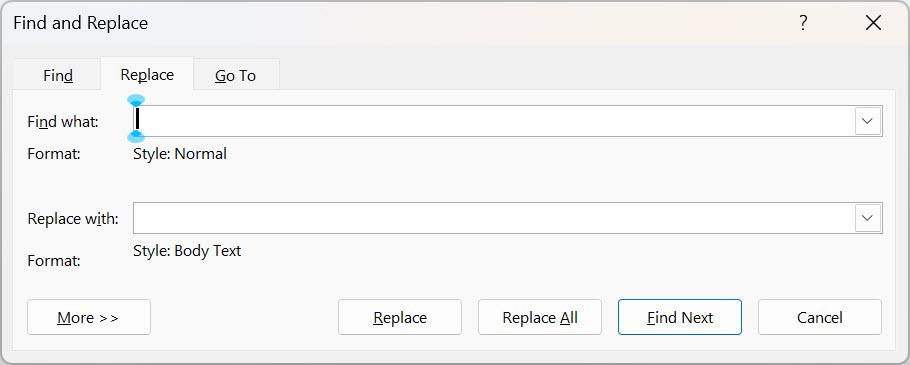
The usual method is to manually bring up Find and Replace, then a set of clicks to be able to get Word to search for styles that a normal, then in the Replace field I have to repeat the process to get Body Text to be replaced. Then I would manually click replace several times. In some parts of a document I may want to leave ‘normal’ styles, so I do not do ‘Replace All’.
The Find and Replace Styles macro
Sub FindNormalReplaceBodyText()
    With Selection.Find
        .ClearFormatting
        .Style = "Normal"
        .Text = ""
        .Replacement.ClearFormatting
        .Replacement.Style = "Body Text"
        .Replacement.Text = ""
        .Forward = True
        .Wrap = wdFindContinue
        .Format = True
        .MatchCase = False
        .MatchWholeWord = False
        .MatchWildcards = False
        .MatchSoundsLike = False
        .MatchAllWordForms = False
    End With
    CommandBars.ExecuteMso "ReplaceDialog"
End Sub
Conclusion
The drain on my time is reduced.
Other people have lots of time and many don’t know what a macro is or care to find out.
In a free and democratic society everybody has choice! BTW I did not type that: I just typed /iaf and the text was spat out. When you spend time with Espanso you can do some amazing things!